

Managing Guest Fees
Overview
Section titled “Overview”The Fees feature allows you to add optional services and additional charges to any reservation. This powerful tool helps you increase revenue while providing guests with enhanced options to customize their experience.
These are perfect for charging one-off fees, such as paying for shipping to return left items, or accommodating special requests that are not publicly offered as upsells.
Accessing Fees
Section titled “Accessing Fees”-
Navigate to any reservation in your SuiteOp dashboard
-
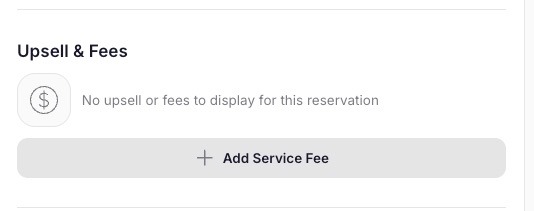
Scroll down to the “Upsell & Fees” section (located between reservation details and workflow actions)
-
Here you can view existing upsells & fees or add new ones
Adding Service Fees
Section titled “Adding Service Fees”When you need to add a service fee to a reservation:
-
Click the ”+ Add Service Fee” button in the Upsell & Fees section
-
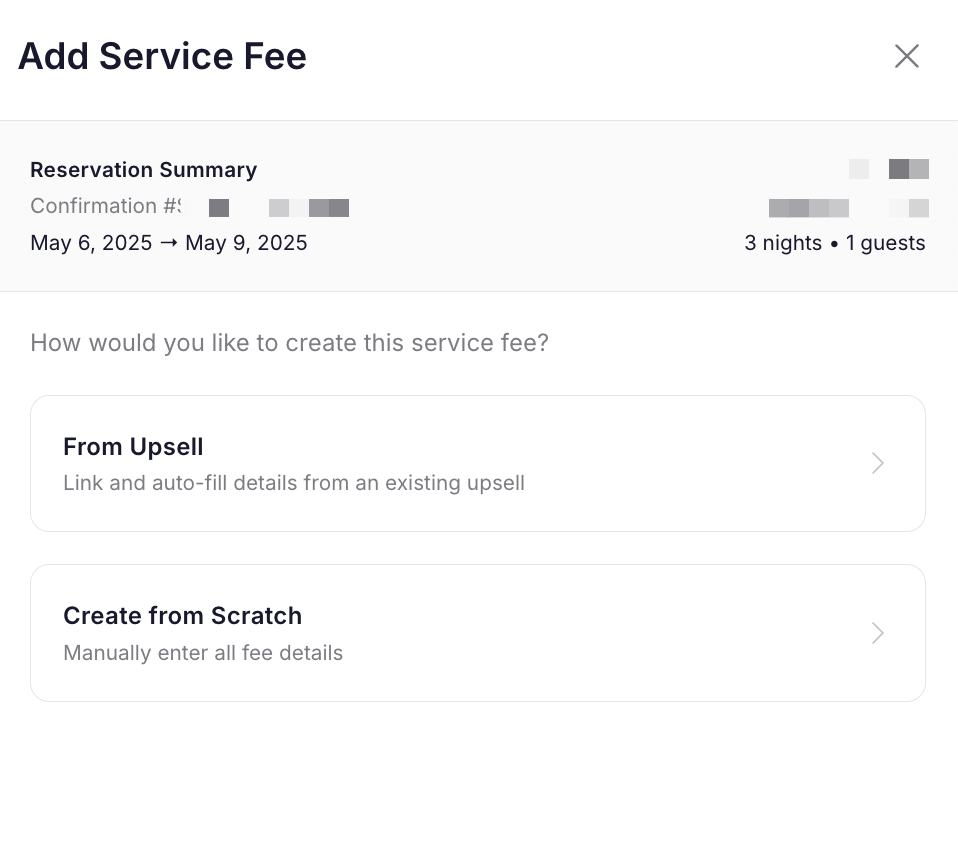
A modal will appear showing the reservation summary, including:
Guest name
-
Property name
-
Confirmation number
-
Reservation dates
-
Length of stay and number of guests
-
Choose how you want to create the service fee:
-
From Upsell: Link and auto-fill details from an existing upsell (coming soon)
-
Create from Scratch: Manually enter fee details
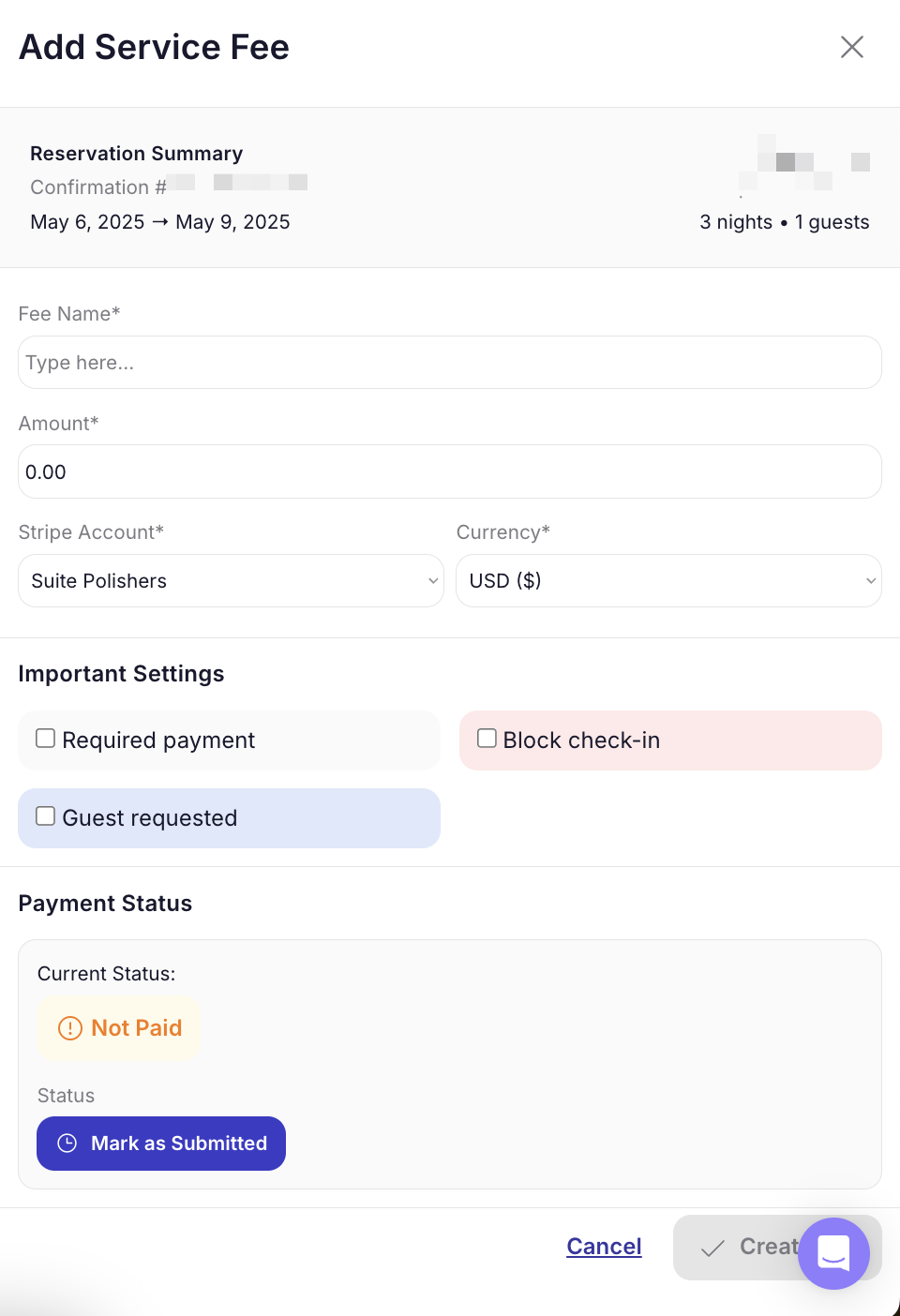
- Select your preferred option and follow the prompts to complete the fee setup
Here you can decide if you want this fee to block the check-in instructions until paid
- Click “Create” to apply the fee to the reservation
Required reason on manual charges
Section titled “Required reason on manual charges”When you create a fee through Create from Scratch, the Reason for charge field is required before you can submit. The text you enter is stored alongside the charge and surfaces in the reservation timeline together with who added the fee and when — so anyone auditing the reservation later can see why the charge was added without having to ask.
The field is marked with a red asterisk in the form. SuiteOp blocks the submit and shows an inline error if you try to save without one. Aim for short, specific reasons that another teammate would understand on its own:
- ✅ “Extra cleaning — guest left pet hair on the sofa, photos in the message thread.”
- ✅ “Replacement key fob — guest reported lost on check-out day.”
- ❌ “Cleaning.” (no context — why was an extra fee needed?)
The From Upsell path does not require a reason — the linked upsell name already provides the context — so the field appears as the optional Internal Notes field instead.
Attaching a receipt or supporting link
Section titled “Attaching a receipt or supporting link”Manual charges include an optional Receipt URL field. Use it to attach a link to whatever supporting document explains the charge — an Airbnb resolution screenshot uploaded to your file host, a vendor invoice, an off-platform receipt PDF, a photo of a damaged item.
A few rules:
- Only
https://andhttp://links are accepted. Other schemes (such asjavascript:ordata:) are rejected for security reasons. - The link is shown in the Charge Detail Sheet as a clickable URL with an external-link icon. If the URL points to an image (
.jpg,.png,.webp,.gif,.avif), SuiteOp also renders a small thumbnail preview next to the link. - The link opens in a new browser tab so the operator does not lose the charge sheet they were reviewing.
Managing Existing Fees
Section titled “Managing Existing Fees”Once fees are added to a reservation:
-
They will be displayed in the Upsell & Fees section
-
Each fee shows the name, amount, and refund status
-
To modify a fee, click on the fee item
-
To remove a fee, click the “X” icon next to the item