

Understanding Property Status Tracking
What is Property Status Tracking?
Section titled “What is Property Status Tracking?”Property Status Tracking gives you real-time visibility into whether your properties are ready for guests. Instead of manually checking multiple systems or making phone calls, you can see at a glance which properties are guest-ready, which need attention, and what specific issues need to be resolved.
The system automatically updates property status based on your team’s task completion and guest reservations, ensuring you always have accurate, up-to-date information about your portfolio.

Property Status Overview
Section titled “Property Status Overview”Main Status Types
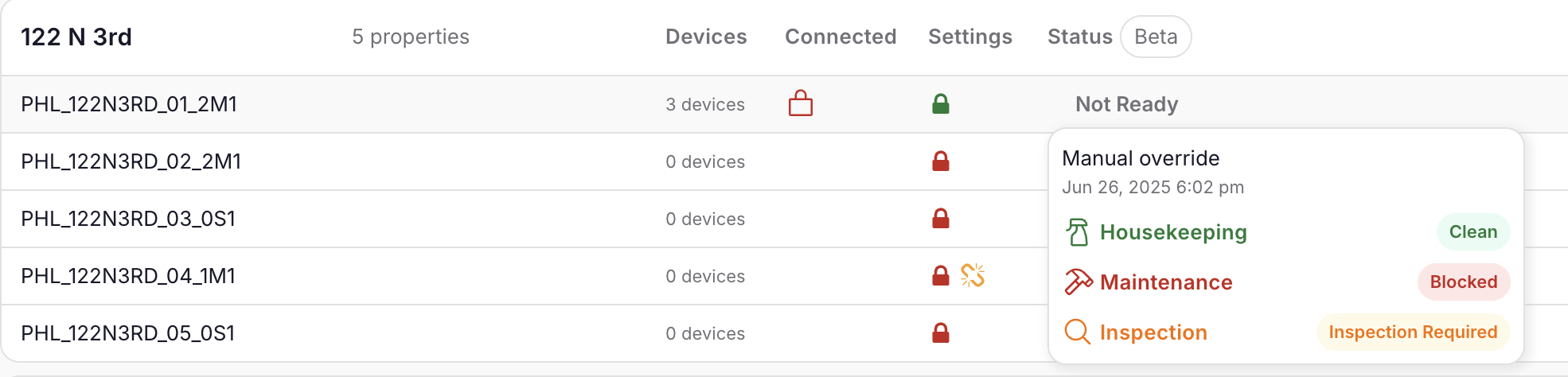
Section titled “Main Status Types”🟢 Ready Your property is clean, inspected (if required), and has no blocking maintenance issues. Guests can check in immediately.** 🔴 Not Ready** Your property needs attention before guests can arrive. This could be cleaning, maintenance, or inspection issues.** 🔵 Occupied** Guests are currently staying at the property. Status automatically changes to this during active reservations.
Understanding the Details
Section titled “Understanding the Details”Each property’s readiness depends on three key areas that your team manages daily:
Cleaning Status
Section titled “Cleaning Status”-
Clean: Property meets your housekeeping standards
-
Dirty: Property needs cleaning before guests arrive
Maintenance Status
Section titled “Maintenance Status”-
Normal: No maintenance issues affecting guest experience
-
Attention Needed: Minor maintenance tasks that don’t prevent check-ins
-
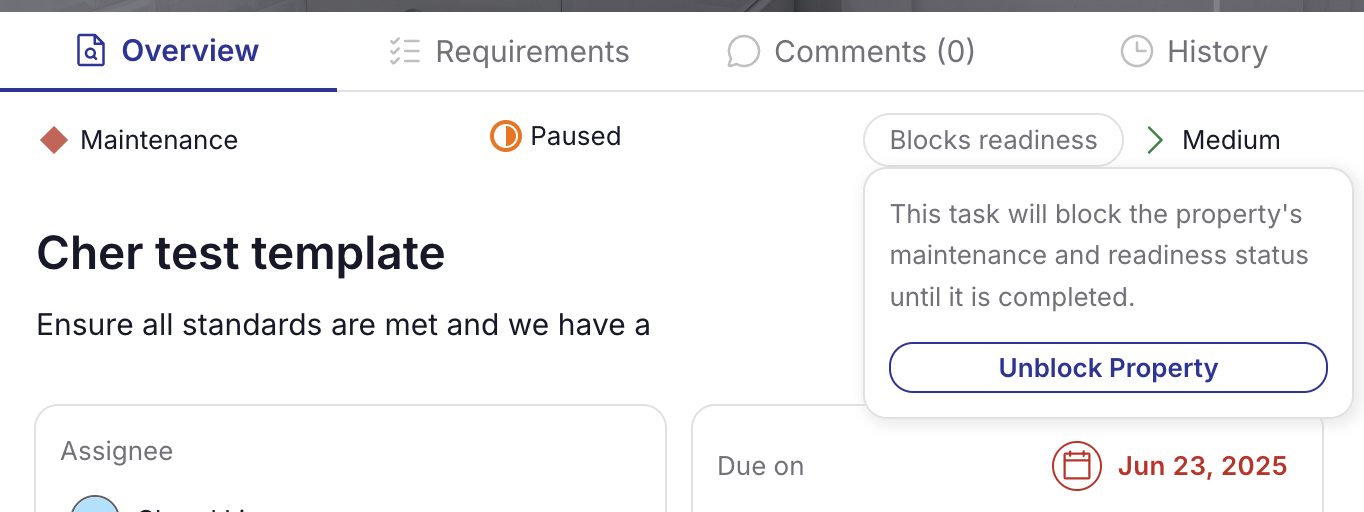
Blocked: Critical maintenance issues that must be resolved before guests arrive
Inspection Status
Section titled “Inspection Status”-
Inspected: Property has passed quality checks
-
Inspection Required: Property needs inspection before guest arrival
-
Inspection Failed: Property didn’t pass inspection and needs follow-up. Once a property is marked Failed Inspection, only an explicit inspection declaration (passed or failed again) will clear it — automatic recalculation never overwrites a failed inspection.
-
Inspection Waived: The property’s group has inspections turned off, so the inspection step is skipped automatically.
How Status Updates Automatically
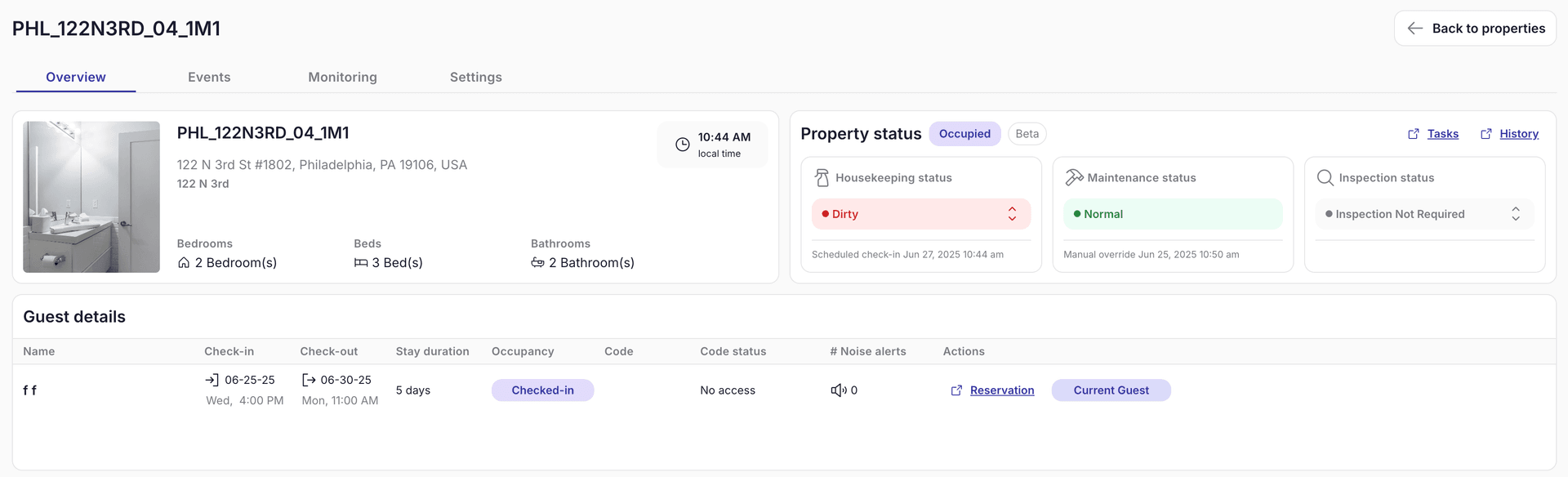
Section titled “How Status Updates Automatically”When Guests Check In
Section titled “When Guests Check In”-
Property becomes “Occupied”
-
Cleaning status changes to “Dirty” (ready for post-stay cleaning)
-
Inspection status updates based on your settings
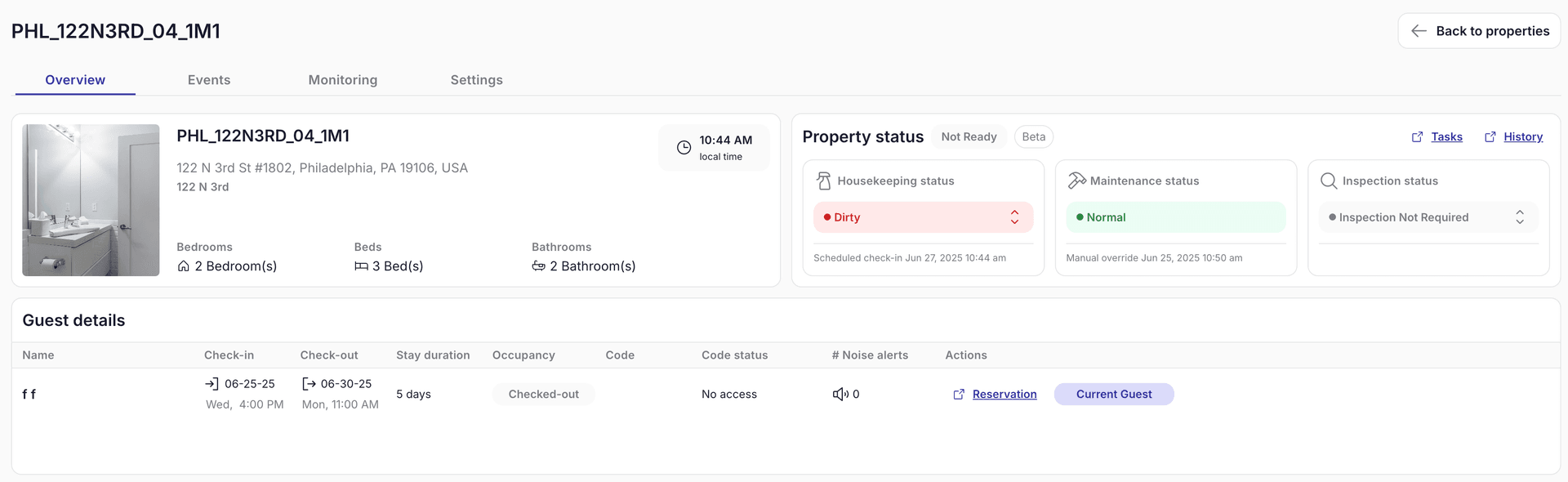
When Guests Check Out
Section titled “When Guests Check Out”-
Property becomes “Not Ready”
-
Cleaning status changes to “Dirty”
-
Inspection status updates to “Required” (if you use inspections) or “Not required” if you don’t use inspections
How Your Team Updates Status
Section titled “How Your Team Updates Status”The Preferred Way: Through Task Completion
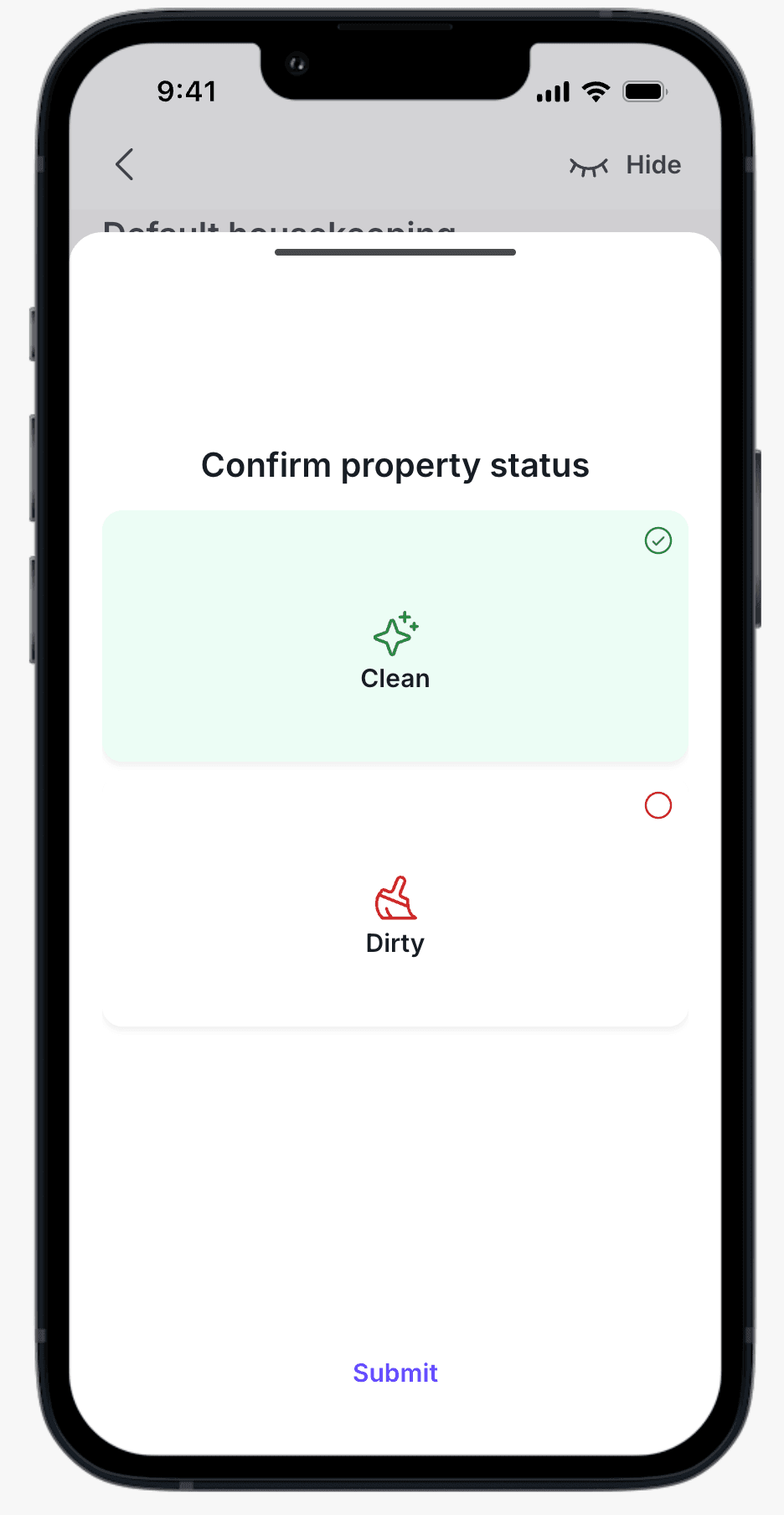
Section titled “The Preferred Way: Through Task Completion”Cleaning and inspection tasks now require a status declaration before they can be marked complete. When your team finishes one of these tasks, SuiteOp shows a short prompt — they can’t bypass it from the normal task flow.
Housekeeping tasks — staff declare:
- Clean — the property meets your housekeeping standards (ready for guests)
- Dirty — the property needs more work
Inspection tasks — staff declare:
- Passed — the property passed quality checks (recorded as Inspected)
- Failed — the property didn’t pass and needs follow-up (recorded as Failed Inspection)
Each declaration accepts an optional note, which is saved with the status change. Failed inspections accept a description of what went wrong.
Skipping a declaration
Section titled “Skipping a declaration”If a task shouldn’t change the property’s status — for example, when catching up on an old task that was already redone — staff can choose Skip property update from the completion dialog and add a reason. The task closes without touching the property’s current status, and the skip is recorded in the status history.
Manual Updates (When Needed)
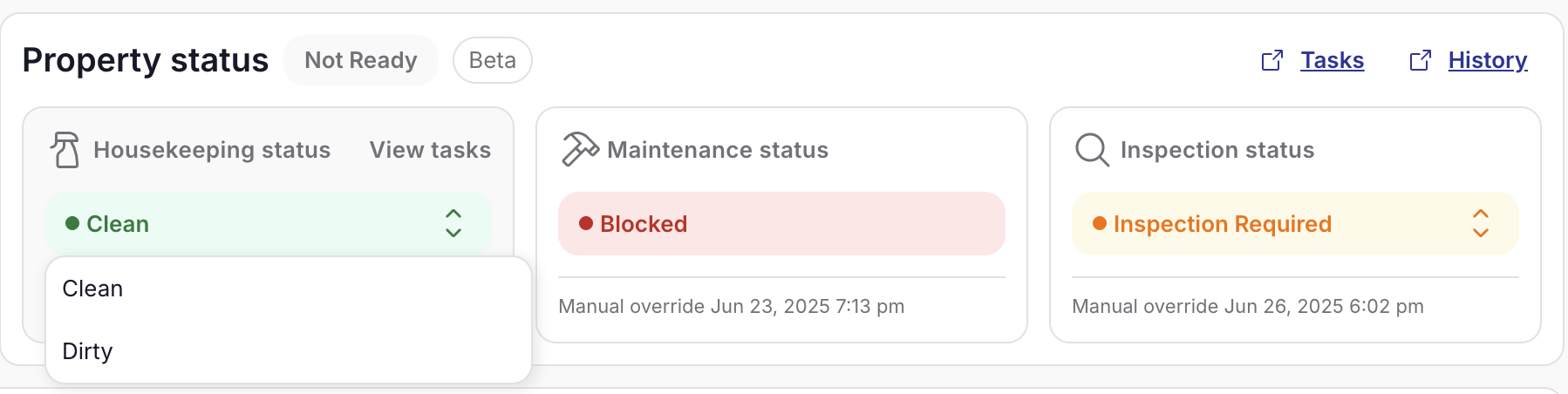
Section titled “Manual Updates (When Needed)”Users with the Modify properties permission can override cleaning or inspection status directly from a property’s status panel.
- Open the property details page
- Click the status pill you want to change (cleaning or inspection)
- Choose the new value in the override dialog
- Add a reason note — required for failed-inspection overrides, optional otherwise
- Click Confirm
The override is recorded in the status history with your name as the actor.
Status History
Section titled “Status History”Every status change — declarations, overrides, automatic transitions, and skipped task completions — is captured in a per-property Status History drawer.
- Open it from the property page by clicking History next to any status pill (or from the status panel header for a combined view).
- The drawer lists each change with the from → to transition, the actor (a user or a system trigger such as
reservation_schedulerormaintenance_recompute), the trigger reason, and any note that was attached. - You can filter the timeline by status column (Readiness, Cleaning, Inspection, Maintenance, or Skipped) and load older entries on demand.
- The status panel updates in real time — when a teammate completes a task or overrides a status, the change appears without needing a refresh.
Configuring Your Properties
Section titled “Configuring Your Properties”Setting Up Inspections
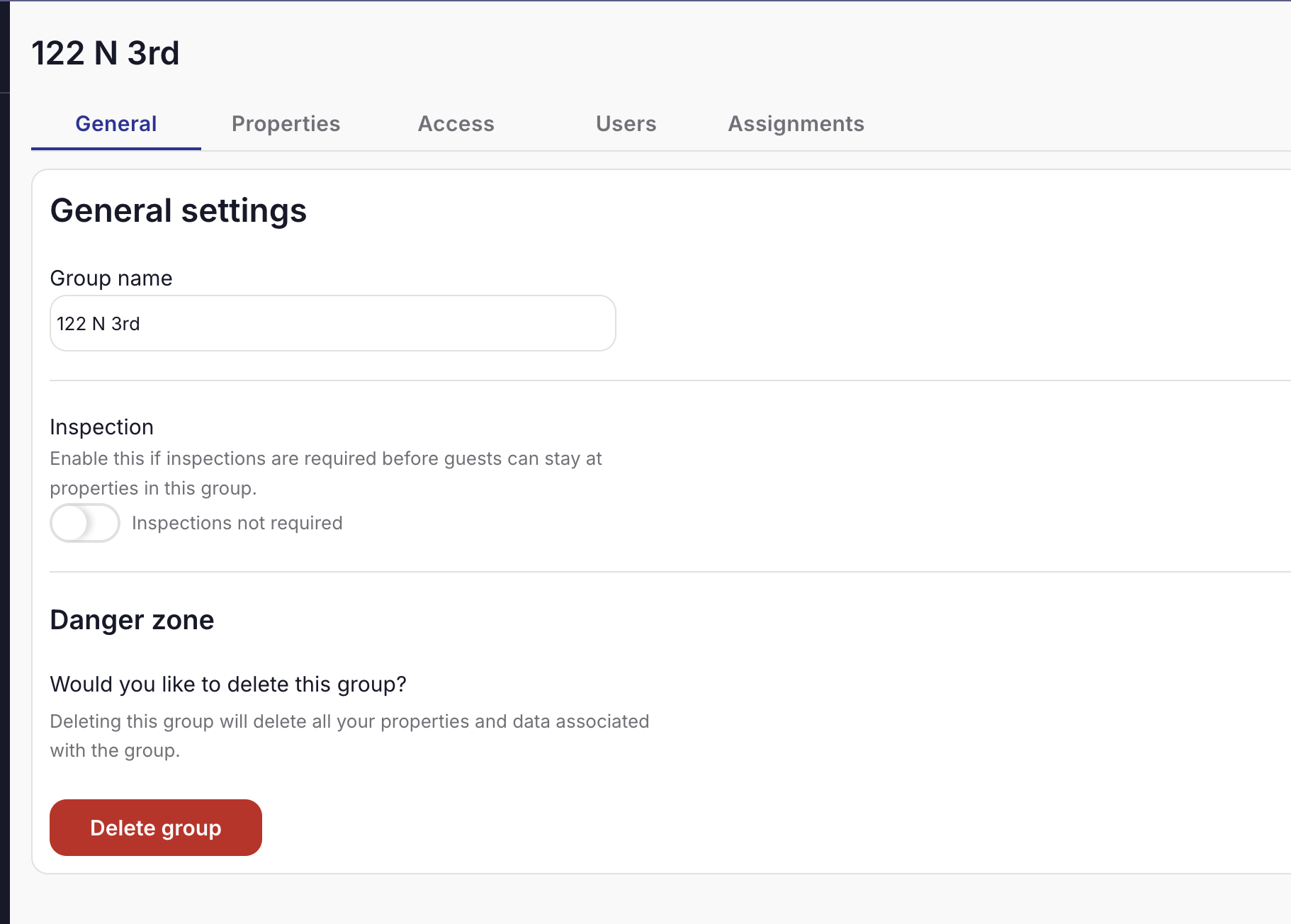
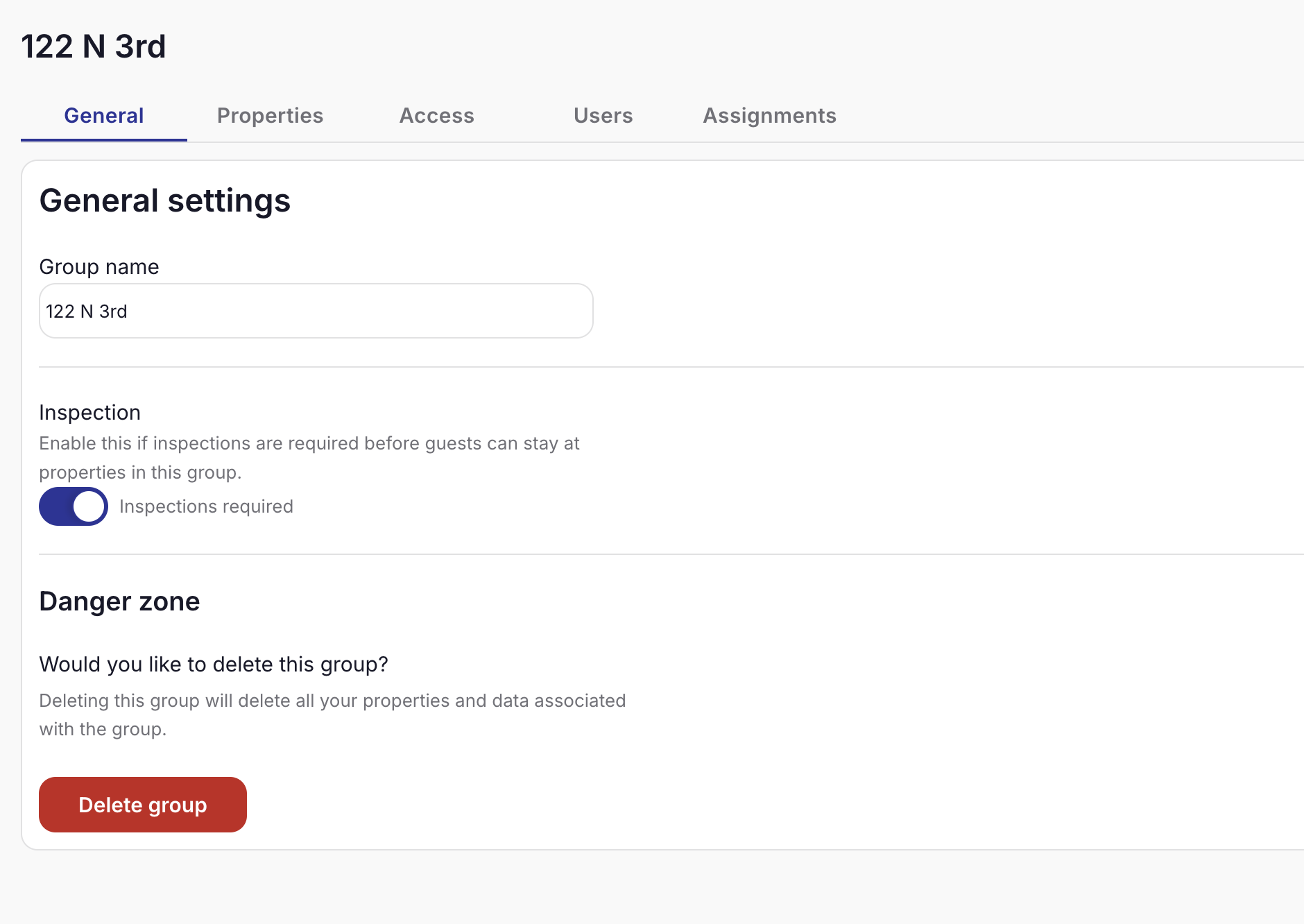
Section titled “Setting Up Inspections”You can configure whether properties require inspections at the property group level:
If Inspections Are Required:
-
Properties must be inspected before showing as “Ready”
-
Failed inspections block guest check-ins
If Inspections Are Not Required:
-
Properties skip the inspection step
-
Status moves directly from cleaning to ready
Managing Maintenance Priorities
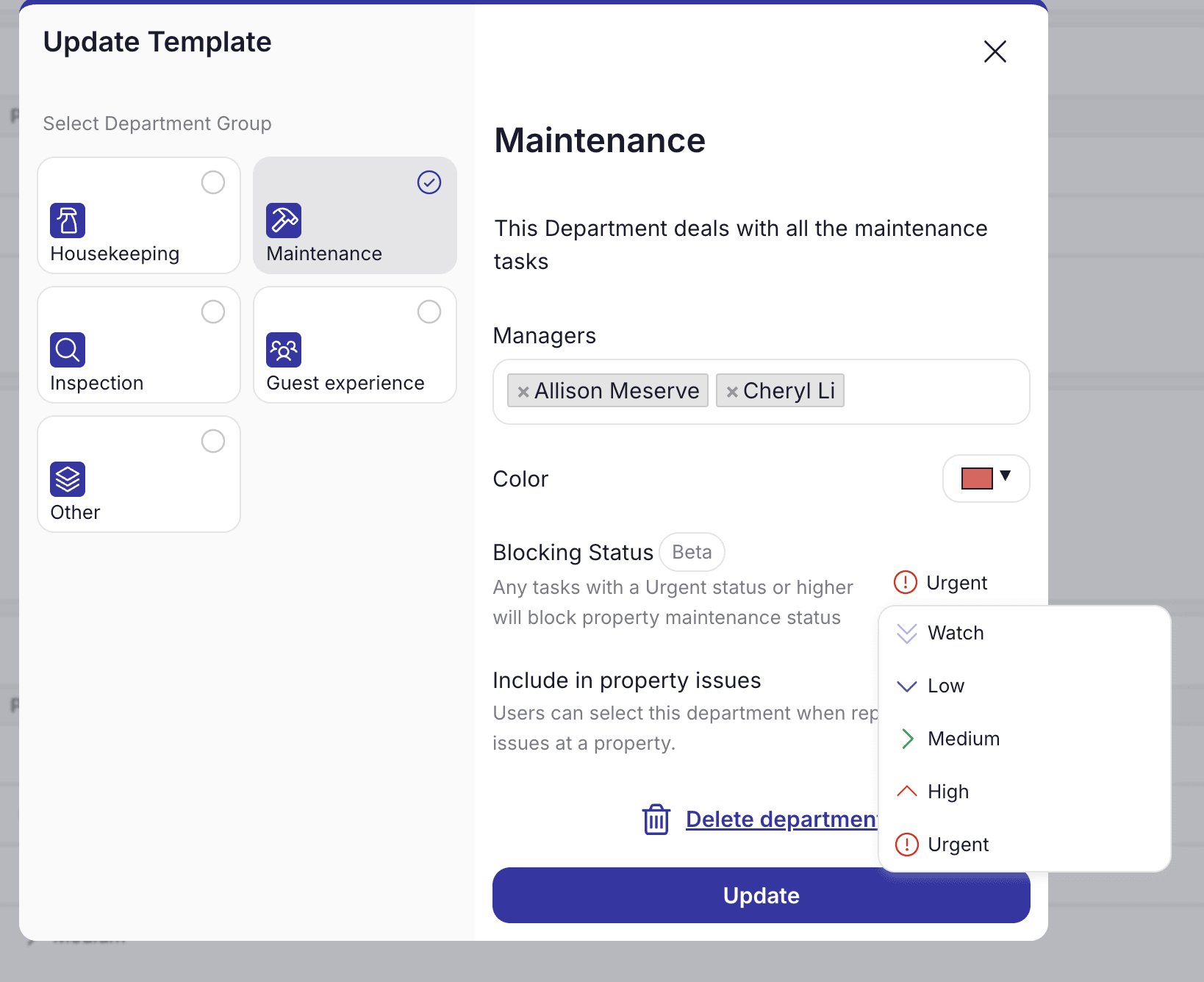
Section titled “Managing Maintenance Priorities”Control which maintenance tasks block property readiness:
-
Go to Department Settings
-
Find your Maintenance department
-
Set the “Blocking Priority” threshold
-
Tasks at or above this priority will block the property
For individual tasks, you can override this setting and mark specific tasks as blocking or non-blocking regardless of priority.
Day-to-Day Usage Tips
Section titled “Day-to-Day Usage Tips”Task Management Integration
Section titled “Task Management Integration”Since property status depends on task completion, keep your task management organized:
-
Mark maintenance task priority appropriately so they block readiness
-
Make sure housekeepers/inspection staff update the status of property after task
Communication with Your Team
Section titled “Communication with Your Team”Property status provides a common language for your team:
-
Staff can see exactly what’s needed to get a property guest-ready
-
Reduces back-and-forth communication about property availability
Troubleshooting Common Questions
Section titled “Troubleshooting Common Questions””Why isn’t my property showing as Ready?”
Section titled “”Why isn’t my property showing as Ready?””Check each component status:
-
Cleaning: Has housekeeping been completed and marked as clean?
-
Maintenance: Are there any open maintenance tasks marked as blocking?
-
Inspection: If required, has the property been inspected and passed?
”A property shows as Not Ready but I know it’s clean”
Section titled “”A property shows as Not Ready but I know it’s clean””The cleaning status might not have been updated after housekeeping completion. You can:
-
Ask housekeeping to update the status through their completed task
-
Manually override the cleaning status as a property manager
”Maintenance status shows as Blocked but the issue isn’t urgent”
Section titled “”Maintenance status shows as Blocked but the issue isn’t urgent””Check if the maintenance task is marked as “blocking”:
-
Go to the task details
-
Look for the blocking indicator
-
If needed, mark the task as “non-blocking” to allow guest check-ins
”I want to require inspections for some properties but not others”
Section titled “”I want to require inspections for some properties but not others””Inspection requirements are set at the property group level.
-
Navigate to property list page
-
Go to group level settings
-
Toggle Inspections Required for all properties within that group
Getting the Most from Property Status
Section titled “Getting the Most from Property Status”Best Practices
Section titled “Best Practices”-
Train your team to update status when completing tasks
-
Review property status each day