

Create House Manuals
House manuals serve as an excellent resource for including information about amenities, operating appliances, accessing unique areas of your property, and providing other useful instructions, such as trash disposal.
Step 1 - Create a new manual
Section titled “Step 1 - Create a new manual”-
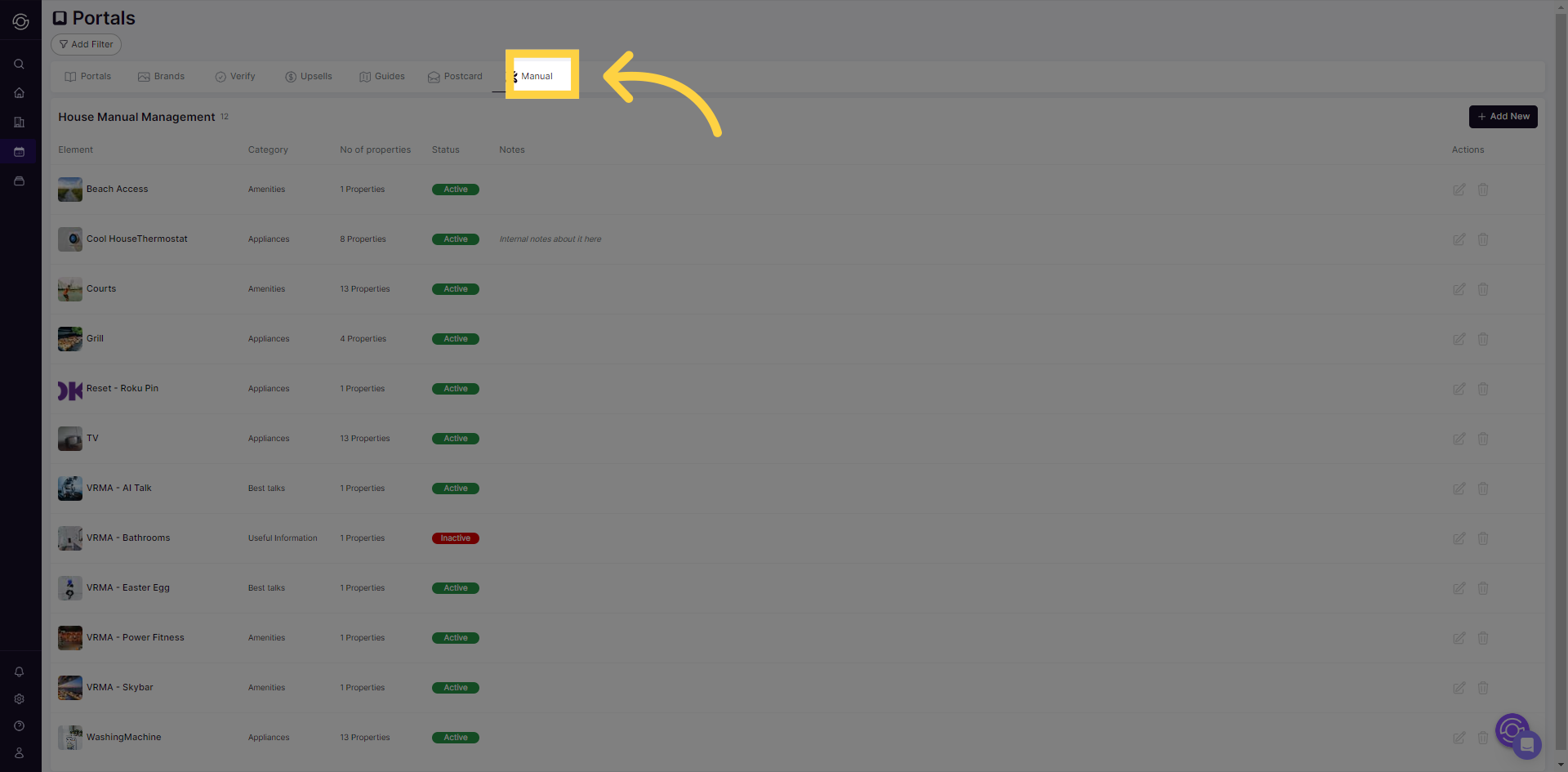
Navigate to the SuiteOp portal configuration page and select the “Manual” tab.
-
Click “Add New” then an editable draft item will appear on the list. You can modify this newly added element by clicking the pencil icon.
Step 2 - Activate and configure the manual
Section titled “Step 2 - Activate and configure the manual”-
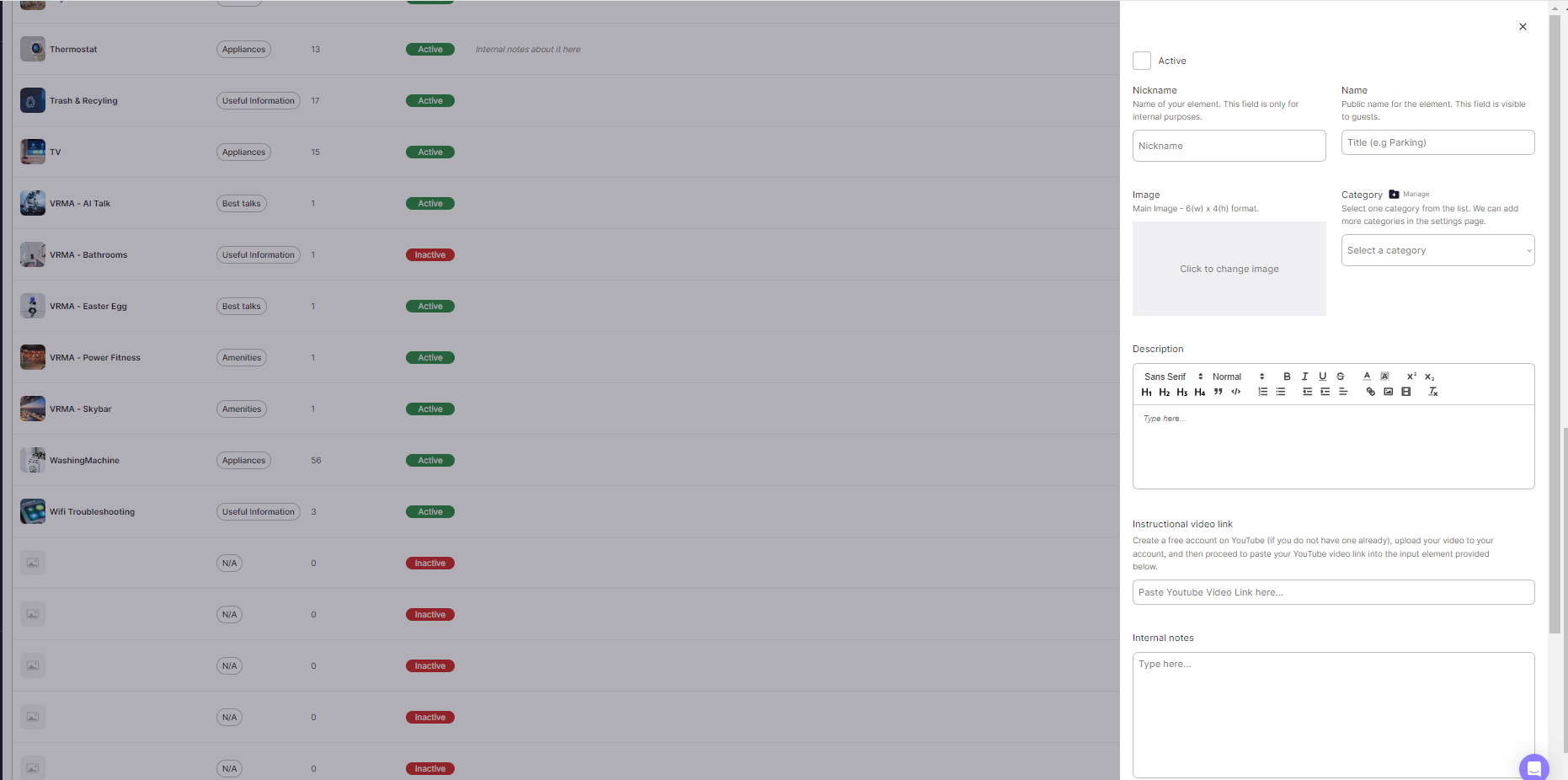
Select the draft item then the edit page will appear. To begin entering information, activate the element by toggling the checkbox. When you activate something in SuiteOp, it shows up immediately on the portals to which it’s assigned.
-
Next, assign a nickname for your manual. This nickname will only be visible to your team in SuiteOp.
-
Enter a name for your manual that will be visible on the guest portal.
-
To upload a cover photo for your manual, select an image.
-
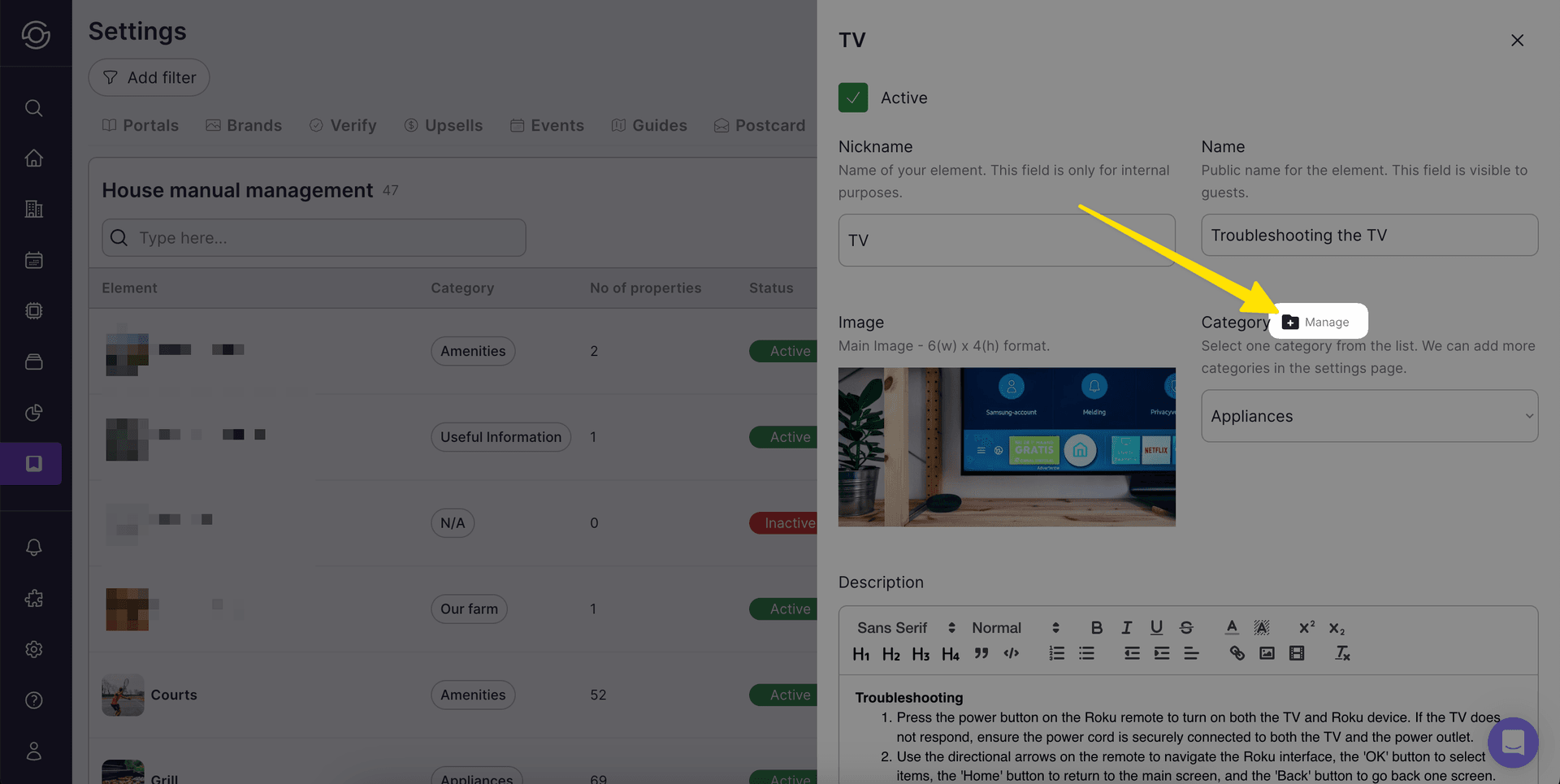
Choose a category for your manual. If you haven’t created a category yet, click “manage” to create a new one. All manuals need a category in order to show up in the guest portal, where they will be organized by category. Commonly we see “Amenities” and “Helpful Information” as examples.
-
You can add a description for your manual. This is the area where you can fill out the specific instructions for your manual.
-
You also have the option to enter an Instructional Video Link from YouTube.
Step 3 - Assign your manual
Section titled “Step 3 - Assign your manual”Assign the manual to one or multiple portals.
Managing manual categories
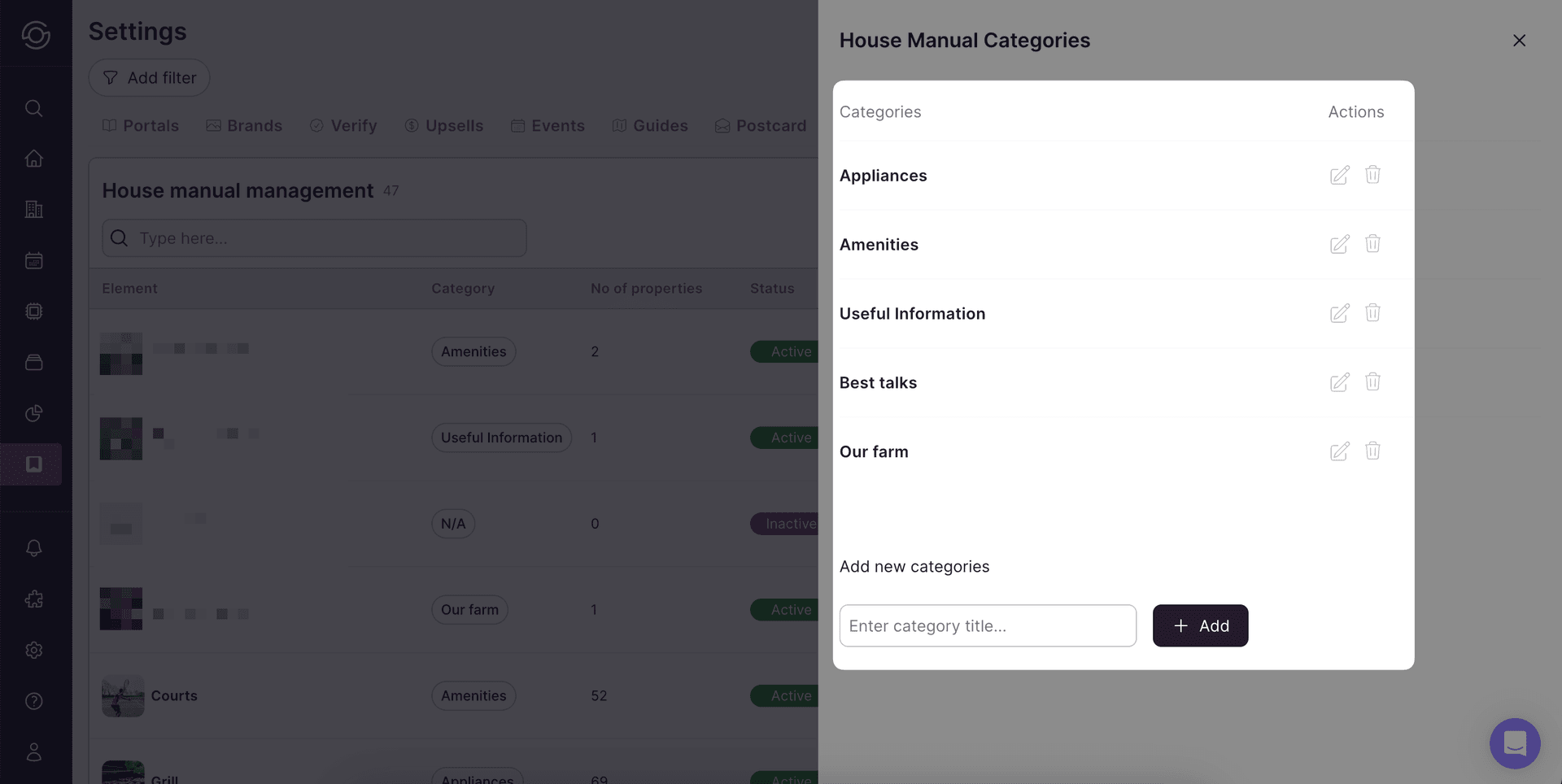
Section titled “Managing manual categories”The Manage Categories button on the category picker opens a dedicated side sheet for full category CRUD — useful when you want to clean up the list independently of any one manual.
In the sheet you can:
- Rename a category inline by clicking the pencil icon next to its title. The new name propagates to every manual already assigned to that category.
- Add a new category from the input at the bottom of the sheet — type the title and press the Add button.
- Delete a category with the trash icon. If the category is still in use, SuiteOp tells you how many manuals reference it and asks you to reassign them before the delete will go through, so no manual is ever orphaned.
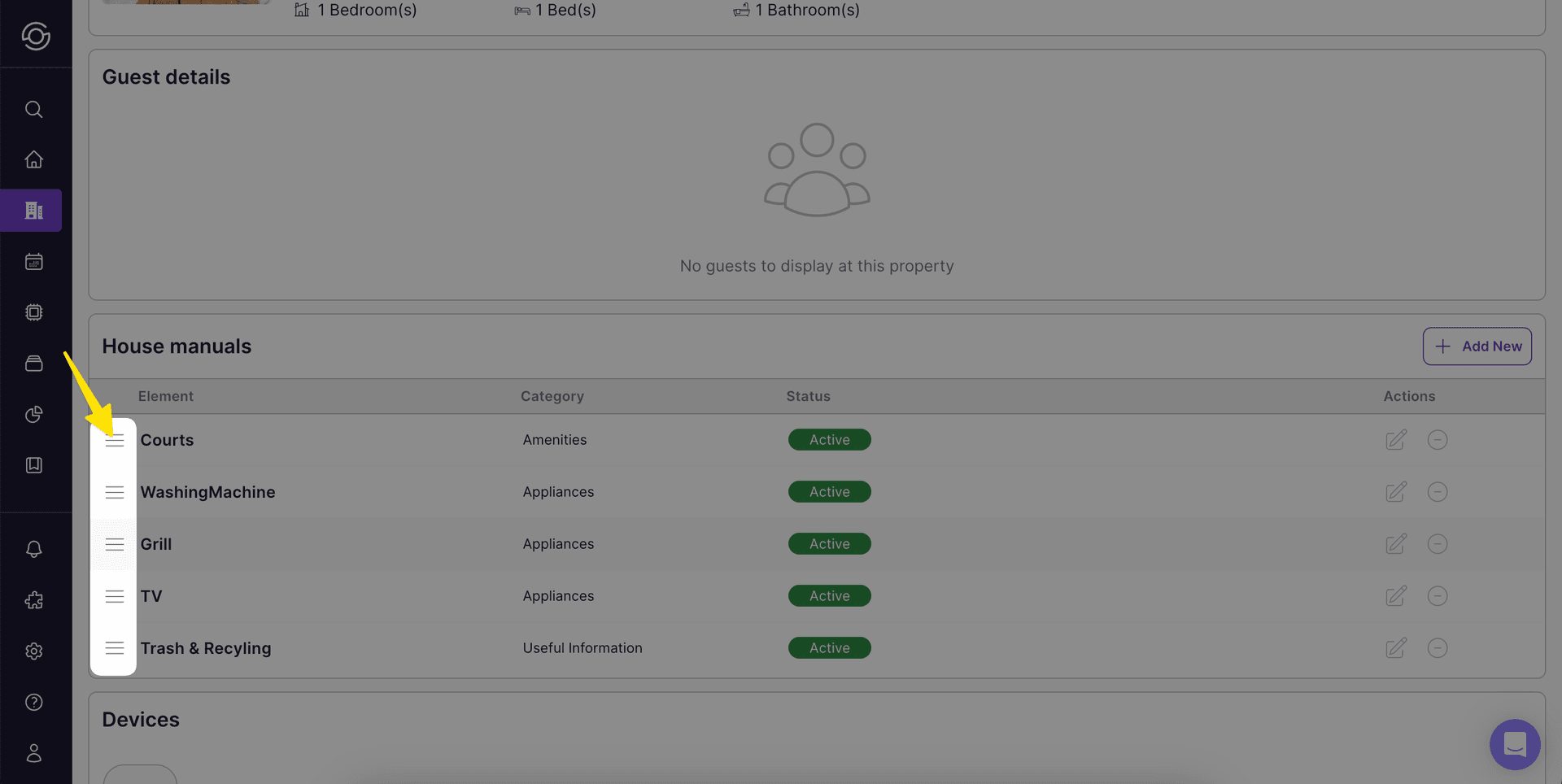
- Reorder categories by drag and drop — the order set here is the order guests see in the portal.
Categories live at the organization level, so changes here apply to every portal and property that uses them.