

Managing Tasks
View your tasks
Section titled “View your tasks”View tasks assigned to you and tasks assigned by you.
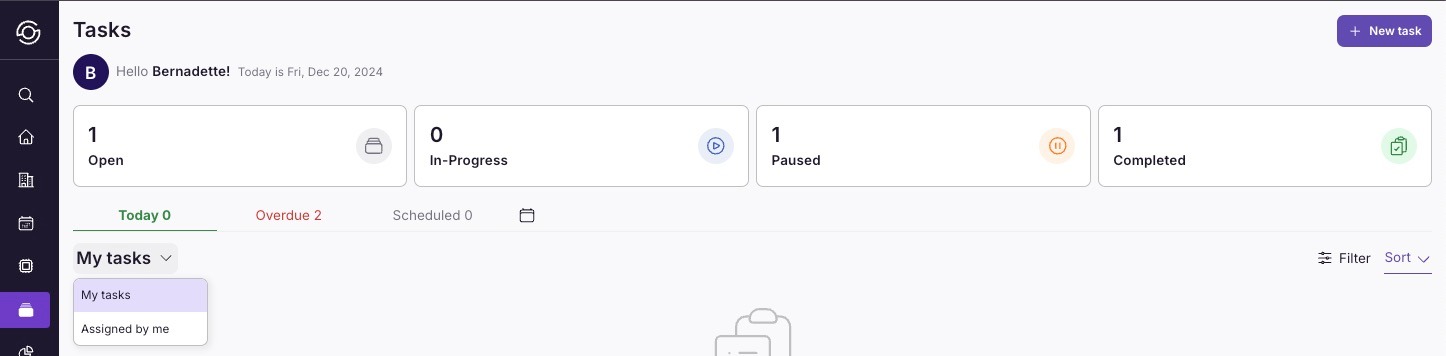
- Go to Tasks > My Tasks.
From here, you can:
- View an overview of your tasks for the day.
- Use the filter and sort options on the right side of the page to customize your view.
- Check overdue and scheduled tasks for better task management.
All tasks across properties
Section titled “All tasks across properties”For a portfolio-wide list of every task, go to Tasks > All Tasks.
The page has two view modes, toggled at the top right:
- Tasks — a sortable, paginated table of every task matching the active filters. Use this when you need to scan rows, sort by status or due date, or perform bulk actions.
- Properties — the Property Readiness Dashboard, which groups properties into swimlanes by urgency and shows their readiness, next check-in, and open tasks at a glance.
Use the filter bar (department, status, priority, assignee, property, unassigned, has reservation) to narrow the list, and Save view to keep recurring scopes one click away.
View the Task Schedule for the entire team
Section titled “View the Task Schedule for the entire team”To see tasks across the whole team on a calendar, go to Tasks > Calendar.
The schedule is an infinite-scroll calendar — scroll horizontally (or vertically in monthly Property mode) to keep loading more days without paging.
Group by
Section titled “Group by”Two grouping options control what each row represents:
- By Property — one row per property, with tasks placed in the column of the day they’re due. Reservation bars also render across these rows so you can see arrivals, stays, and departures alongside the work.
- By User — one row per team member, showing every task they own across the time range.
Time range
Section titled “Time range”Three time ranges control the column width:
- Day — a single visible day per page, with each property/user column stretched to fill the viewport. Good for densely scheduled days.
- Week — seven-day pages, infinite-scrollable in both directions.
- Month — full-month pages. In By Property mode the months stack vertically; in By User mode they scroll horizontally as a continuous users × days grid.
Navigation controls
Section titled “Navigation controls”- Today — jumps back to the current week or month.
- ◂ / ▸ — step backward or forward one day, week, or month depending on the active range.
Click any task to open its detail sheet, or click an empty cell to create a new task pre-filled with that property/user/date.